
A closer look at CapCut
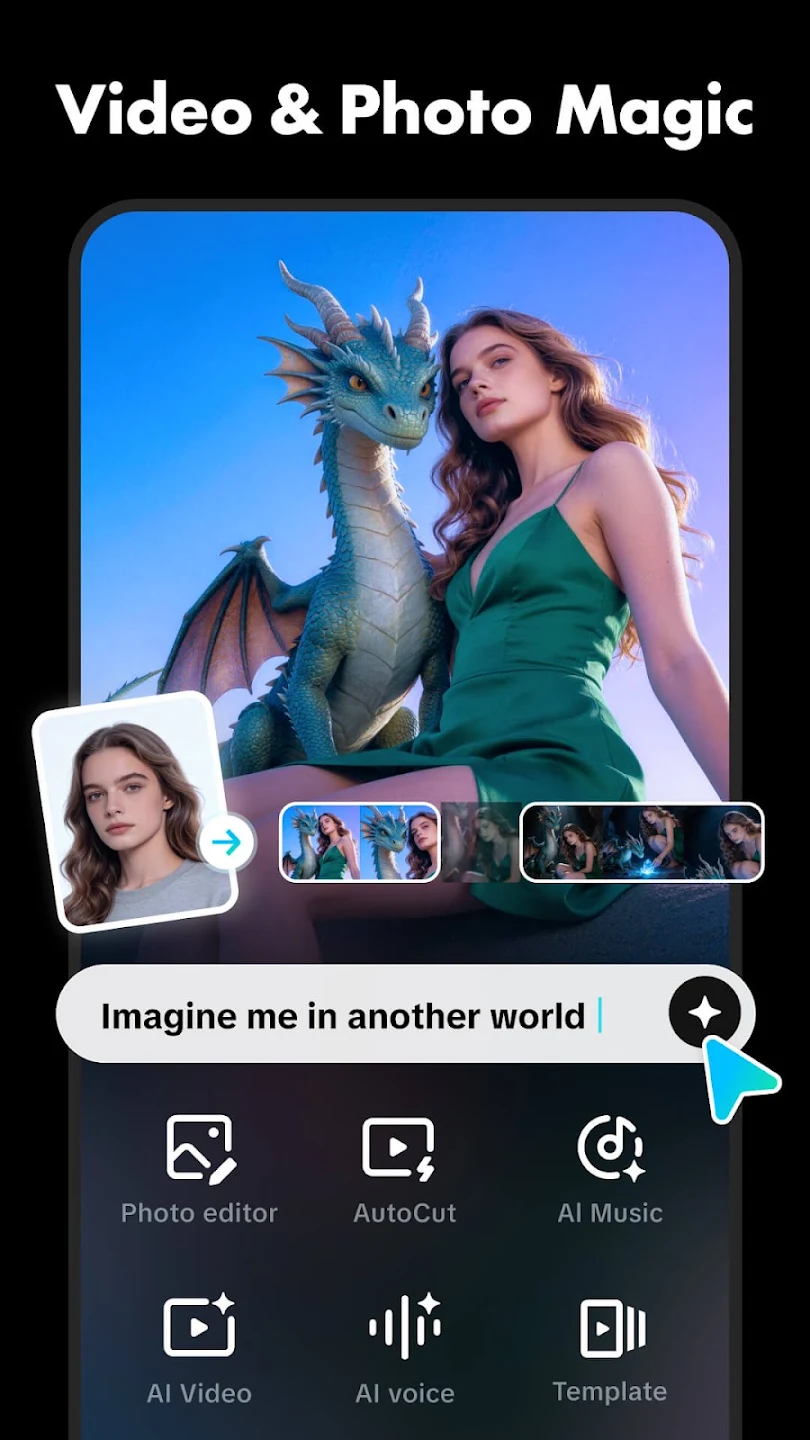
CapCut brings video editing, captions, audio and visual effects into one workspace. Start with clips from your camera roll, arrange them on a timeline, and shape the result with text, music and transitions. A short social video can begin with a few simple cuts; a more detailed project can use overlays, masks, keyframes and several audio tracks.
Build your edit on the timeline
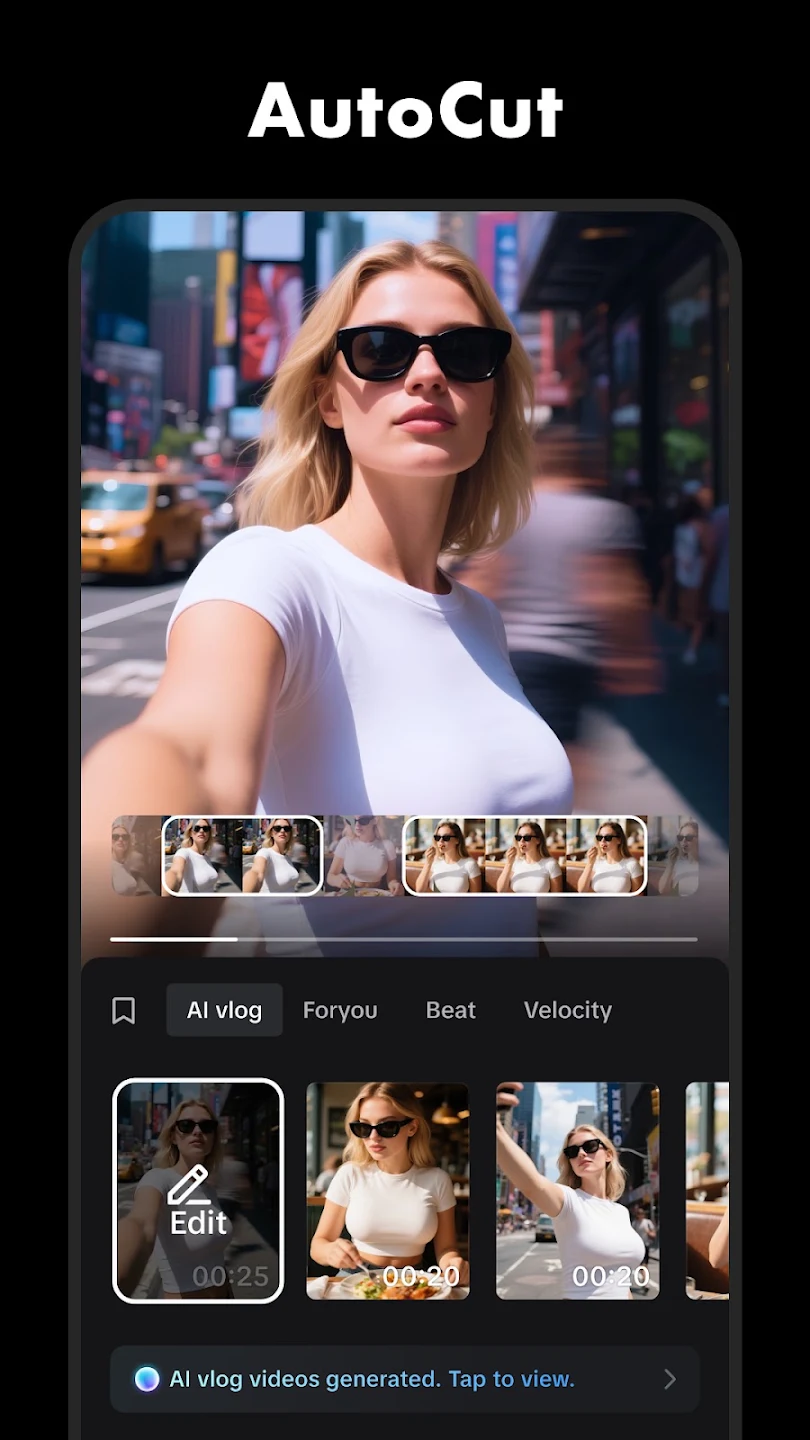
Trim the beginning and end of a clip, split it where the scene changes, and arrange the pieces in the order you want. Add another video or photo as an overlay for a reaction, demonstration or picture-in-picture composition. A multi-track timeline lets you place narration and music alongside the images, then adjust their timing independently.
Keyframes give you control over movement between points in a clip. You can move an image, change its scale, rotate an element or adjust its opacity as the video plays. Preview the movement and change the timing until it fits the scene.
Make speech part of the story
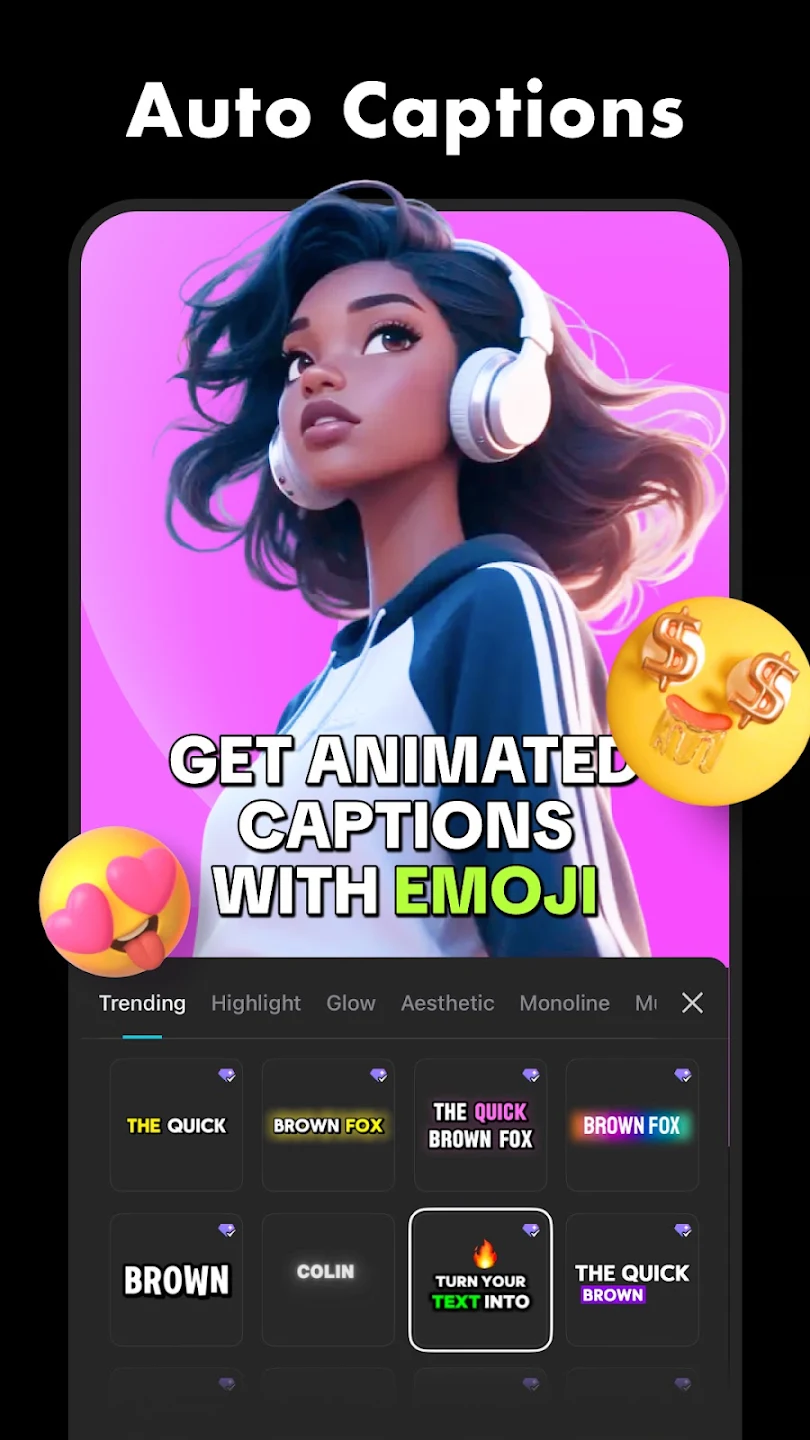
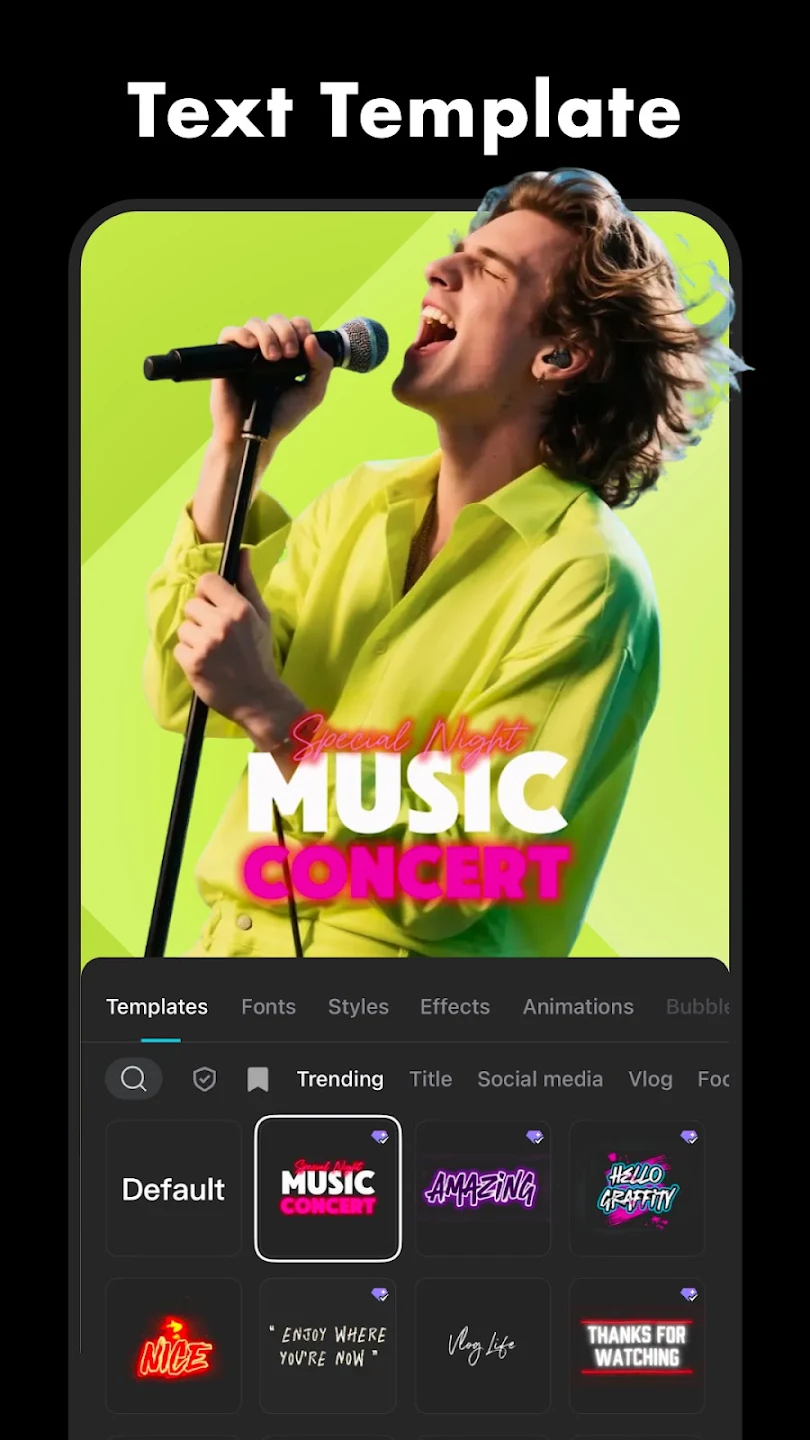
Automatic captions turn spoken audio into editable text. Review the result before publishing, especially names, accents and words recorded against background noise. Adjust the text’s size, position and appearance so it remains readable over your footage. Text templates offer another starting point for titles and short on-screen messages.
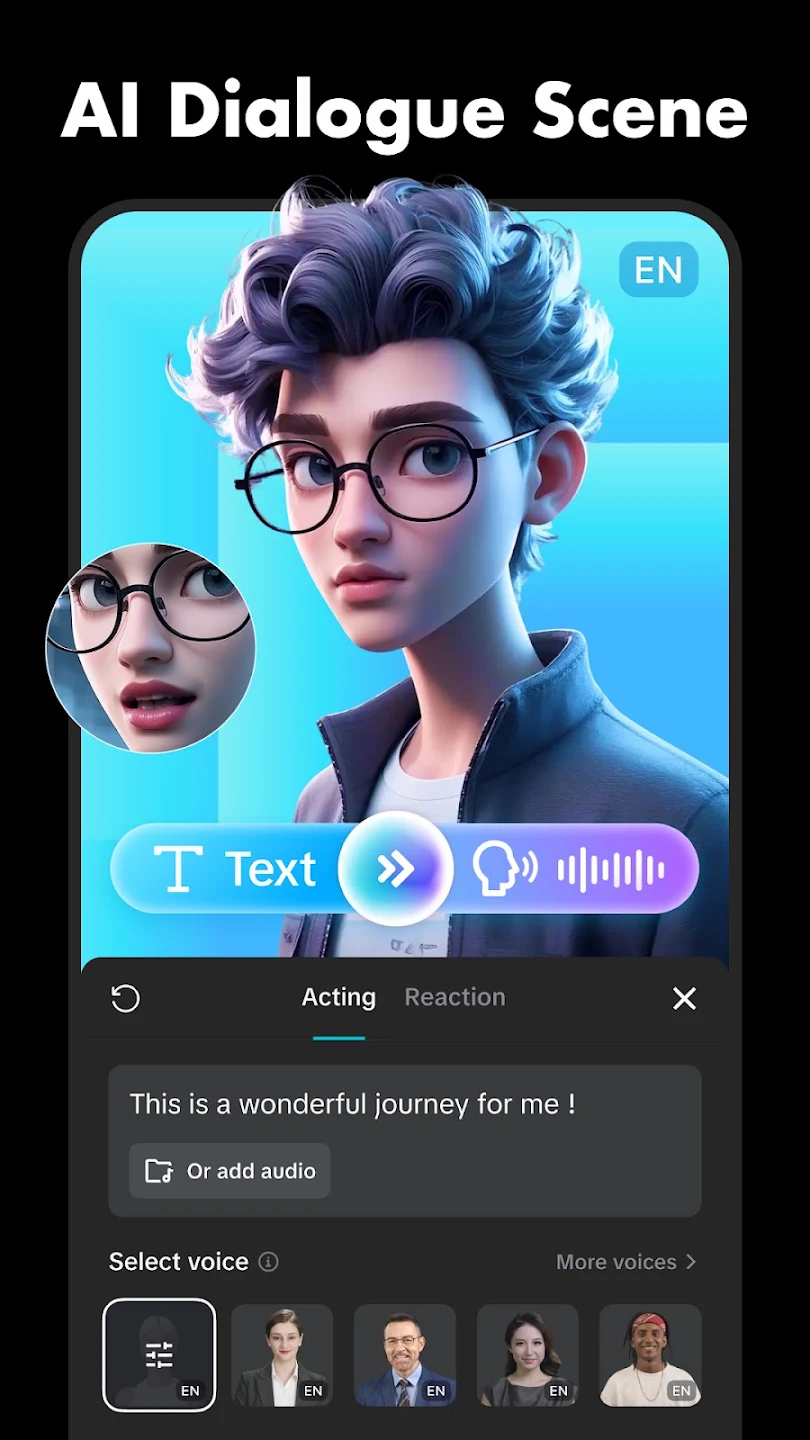
For narration, record a voiceover or use text-to-speech where it is available. Music, separate audio tracks and sound effects can help establish a video’s rhythm. Balance their volume so the voice stays clear. When you bring music into a project, check that its usage rights cover your intended publication.
Change the look, keep the subject
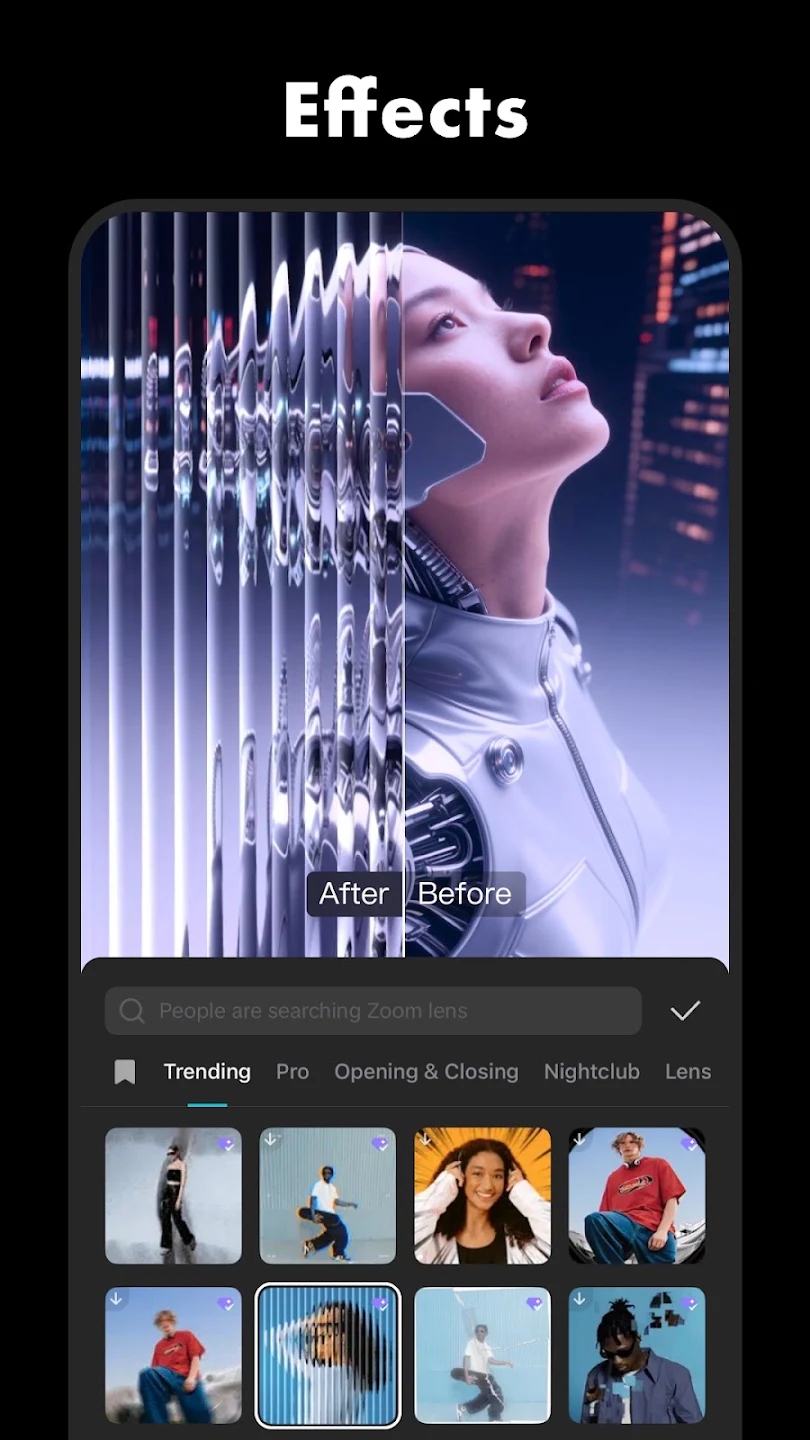
Filters and color controls help you balance brightness, contrast, saturation and warmth across clips. Begin with small changes and compare the result with the original. Effects and transitions add a different kind of emphasis: use them where a scene change or a particular moment needs attention.
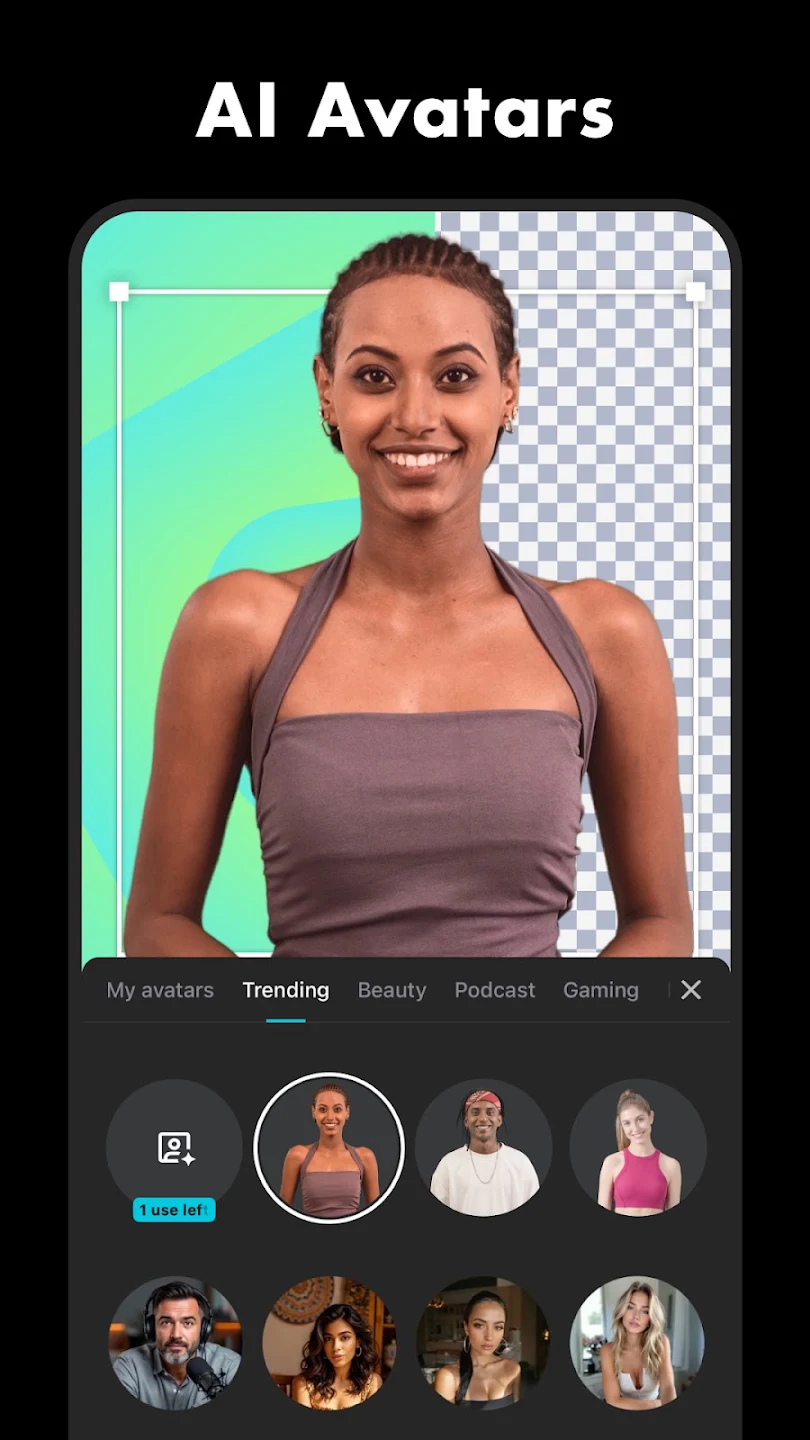
Chroma key removes a selected background color so you can place a different image behind a subject. Automatic background removal offers another approach when you do not have a green screen. Fine edges, hair, lighting and movement can affect the result, so inspect the finished composition before exporting. Masks and blend modes provide further control over how layers appear together.
Find the right pace
Change a clip’s speed for a quick sequence or a slower highlight. Speed curves let the pace change within the same shot. Slow motion works best when the original recording contains enough frames for a smooth result; an export setting cannot recover detail that was never captured. Stabilization can help reduce visible camera shake, while tracking can help keep a graphic attached to a moving subject.
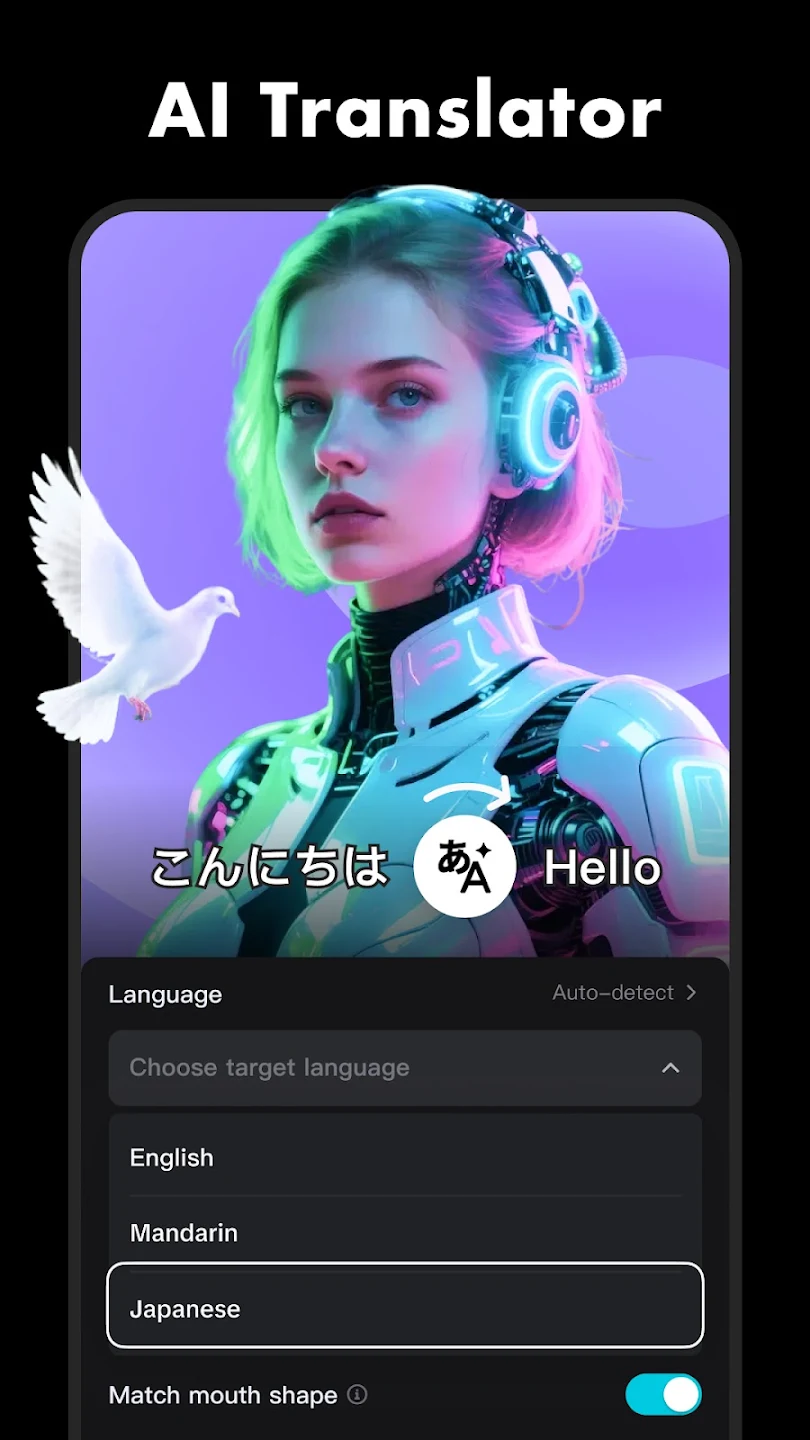
Templates are useful when you want an editing structure to begin with. Replace the example media, review the timing, and make the text and audio your own. Available templates, effects and AI tools can differ by platform, account, region and app version.
Export for the place you will share
Before exporting, check the aspect ratio, resolution and frame rate. A vertical short and a landscape video need different framing. Preview text near the edges and check that no important part of the image has been cropped.
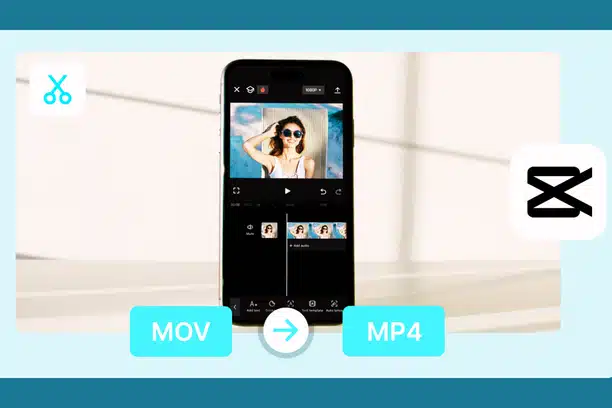
Depending on the device and project, export options can include HD, higher frame rates and up to 4K. Higher settings also need more storage and processing time. Match the settings to your original footage and destination; increasing resolution alone does not create missing detail. MP4, when available, is a practical format for sharing across devices.
Choose a platform and set up your first project
Choose Android, iPhone or PC from the download options above. The Android version shown on this site is 13.6.0. The iPhone option opens the configured App Store listing, and the PC option uses the supplied Windows installer. Platform downloads do not imply that every feature, subscription or project format is identical across devices.
For an Android APK, download the file first, then open it on your device. If Android requests permission to install from that source, review the prompt and allow it only for the source you intend to use. Available storage, device compatibility and an incomplete download can affect installation. After installation, start a new project, import a short clip and try trimming, adding a title and exporting before moving to a larger edit.
Free editing, Pro and modified APKs
CapCut includes basic editing tools alongside features and resources that may require a paid plan. Pro availability and prices vary by platform, region and account; check the options shown in your app. This site does not claim that the supplied file unlocks paid features.
A MOD APK is a third-party modification, rather than another name for an official Pro subscription. Its source, behavior and compatibility can differ. A filename or a download button alone does not establish a file’s origin or safety. The MOD APK guide will explain that distinction without promising premium access.
When an edit will not finish
If playback becomes slow, close unneeded apps, check free storage and reduce heavy effects or the number of layers while you work. Large source videos and complex AI processing can increase the load. Try exporting a short section to identify whether a particular clip or effect is causing trouble.
For a failed export, check the destination’s free space and try settings appropriate to the device. If captions or another online feature stop responding, check your connection. Keep a copy of important source files and drafts before reinstalling or clearing app data. Cloud and cross-device project support, where available, depend on the account and platform; confirm that a project has finished syncing before removing local files.